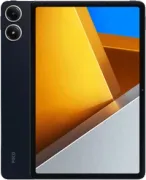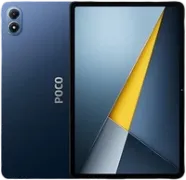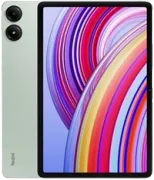
📲 Turn your POCO Pad into the ultimate Home Assistant Wall Panel: 3 Pro Methods
Do you have a POCO Pad or a Redmi Pad Pro and want to take your smart home to the next level? Don’t let it sit in a drawer. In this article, we’ll show you how to turn it into a professional Home Assistant Wall Panel, so you can control your entire smart home with a single tap from the wall in your living room.
On YouTube I share more tutorials, hands-on tests and real smart home setups. Subscribe on YouTube
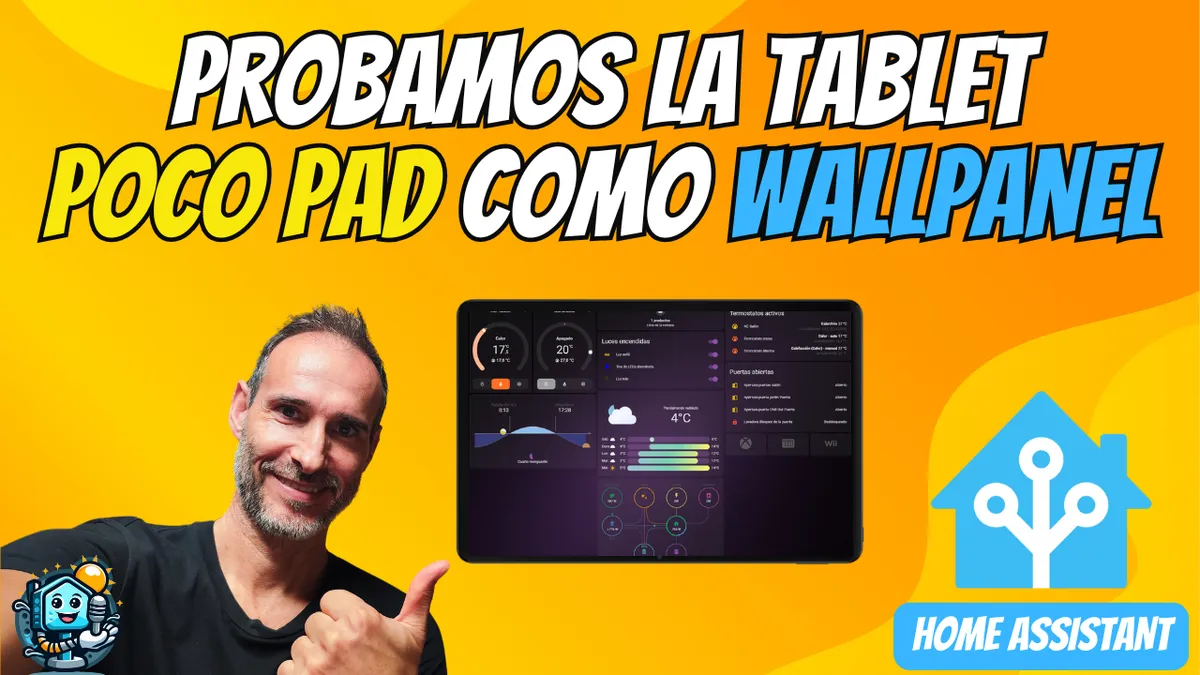
Related video on YouTube
Video🚀 Why is the POCO Pad perfect for a Wall Panel?
Not every tablet is suited to be a 24/7 control panel. The POCO Pad stands out thanks to:
- 12.1" 120Hz display: The ideal size for viewing complex dashboards with ease.
- Snapdragon 7s Gen 2: More than enough power to make the Home Assistant interface feel lightning fast.
- 10,000 mAh battery: Perfect for managing smart charging cycles and extending the device’s lifespan.
🛠️ 3 Ways to Set Up Your Wall Panel
In my latest video, we walk through these three options step by step, from the simplest to the most advanced:
1. Official Home Assistant App
This is the fastest option. Just download the app, set up a dedicated user for the panel (very important for security) and enable full-screen mode.
2. Web Browser (Kiosk Mode)
Ideal if you want something lightweight. By using the browser in desktop mode and hiding the address bar, you get a clean experience without installing extra apps.
3. Fully Kiosk Browser (The Professional Option)
If you want total control, Fully Kiosk is the key. It lets you lock the tablet so it only displays Home Assistant, wake the screen through the front camera when motion is detected, and manage battery status remotely.
💡 Expert Tips for Your Panel
To make your Wall Panel truly useful, don’t overlook these technical details:
- Screensaver with Data: Use the Wallpanel integration to show photos or useful information when you’re not using the tablet.
- Battery Care: Don’t leave it charging at 100% all day. Use a smart plug and a Home Assistant automation so it only charges when it drops below 20% and stops at 80%.
- Custom Dashboards: Take inspiration from websites like Aguacatec to create minimalist, functional interfaces.
If you’re just getting started and all this sounds like Greek to you, I recommend my Free Home Assistant Mini-Course to build a solid foundation.
Watch the full video tutorial:
Don’t miss a single detail of the setup and unboxing here: Turn the POCO Pad into a Wall Panel for Home Assistant
Note: This article contains affiliate links. If you buy through them, you help us keep creating high-quality content at no extra cost to you. Thank you!
Where to buy
If you are interested in any of the options mentioned, here are the available links:
- POCO Pad — Reviewed in the video: Amazon
- POCO Pad M1 — New recommended version (Bat. 12000mAh / Snapdragon 7s Gen4): Amazon · AliExpress
- Redmi Pad Pro — Equivalent alternative (Exactamente igual): Official store · Página Oficial (v. 5G) · Amazon · Aliexpress versión 5G