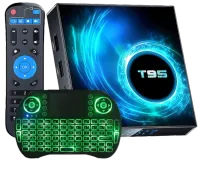
Guide: Android TV in Home Assistant with IOTWE T95W (Notifications and Control)
Integrating a TV Box or Smart TV into Home Assistant is one of the most rewarding steps in home automation. It is not just about controlling volume; it is about getting camera alerts on screen or automating a "cinema mode" when you open Netflix. In this article, we will use the IOTWE T95W, a powerful and affordable Android 13 TV Box, but these steps work for almost any Android TV or Fire TV Stick.
On YouTube I share more tutorials, hands-on tests and real smart home setups. Subscribe on YouTube
Related video on YouTube
Video1. The Hardware: IOTWE T95W
This model is ideal for home automation enthusiasts thanks to its well-balanced hardware:
- OS: Android 13 (highly compatible with ADB).
- CPU: RK3528 quad-core with WiFi 6.
- Ports: USB 3.0, HDMI 2.1, and Ethernet (essential for stability).
2. Setup: Developer Mode and ADB
For Home Assistant to take control, we need to open an official "back door" called ADB.
- On your TV Box, go to Settings > Device Info.
- Tap "Build number" 7 times Build number until "Developer options" are enabled.
- Open that new menu and enable USB debugging and Network debugging.
- Static IP: It is vital that you go to the network settings on your router or the TV Box itself and assign it a static IP. If the IP changes, the integration will stop working.
3. Home Assistant Integration
We will use the native Android TV Remote integration.
- Go to Settings > Devices & Services > Add Integration.
- Search for Android TV Remote.
- Enter your T95W IP.
- A pairing code will appear on the TV. Enter it in Home Assistant.
4. Image Notifications (Live Camera Views)
To send visual alerts (such as "Someone is at the door"), install the Notifications for Android TV / Fire TV app on your TV Box from the Play Store.
Notification service setup:
Add this to your configuration.yaml (or set it up from the interface):
# Notification setup
notify:
  - name: android_tv_salon
    platform: nfandroidtv
    host: 192.168.100.253 # Your TV Box IP
Script to send a camera image:
If you want the camera feed to appear in the TV corner when motion is detected, use this code. It is important to use the template so the image refreshes correctly and does not stay frozen:
service: notify.android_tv_salon
data:
  title: "Security Alert"
  message: "Motion detected on the porch"
  data:
    # Replace the IP with your Home Assistant IP and the name of your camera
    image: "{{ 'http://192.168.100.253:8123' ~ state_attr('camera.camara_porche_fluent', 'entity_picture') }}"
    duration: 10
    position: bottom-right
    fontsize: large
5. Remote Control and ADB Commands
You can create buttons on your Dashboard to launch apps directly using ADB commands.
Example to launch an app:
service: androidtv.adb_command
target:
  entity_id: media_player.android_tv_t95w
data:
  command: "am start -n com.google.android.youtube/com.google.android.apps.youtube.tv.watch.WatchActivity"
Where to buy
If you are interested in T95W / T95 Plus, here are the available purchase options:
- T95W / T95 Plus — New recommended version: Aliexpress
Conclusion
The IOTWE T95W performs excellently as a home automation bridge. Since it runs Android 13, the response to Home Assistant commands is almost instant, making it a perfect notification hub for your smart home.
Would you rather see the process step by step? You have the full tutorial on my YouTube channel: Set up Android TV/Fire TV in HOME ASSISTANT by HectorziN | Domótica y Home Assistant.
I hope this article is a success on your blog, HectorziN! If you need to fine-tune any more technical details, I am here for you.