How to Set Up a WiFi Mesh Network (Tenda Nova MX15) and Say Goodbye to Connection Problems
Is your WiFi constantly dropping out? Are there areas in your home where the signal simply never reaches? If you have lots of smart devices or a large house, your ISP router quickly runs out of steam. The ultimate solution is a WiFi Mesh network. In this article, I’ll show you how to install and properly set up the Tenda Nova MX15 AX5400 system (and its sibling, the MX12 AX3000) for full coverage and top speed.
On YouTube I share more tutorials, hands-on tests and real smart home setups. Subscribe on YouTube

Related video on YouTube
VideoWhat Is a WiFi Mesh Network and Why Do You Need One?
Unlike traditional repeaters (which create separate networks and lose speed), a Mesh network creates a single smart network throughout the house. Your devices connect automatically to the nearest node without interruptions.
It’s the ideal choice for:
- Homes with multiple floors or thick walls.
- Smart home systems with lots of sensors.
- 4K streaming and lag-free gaming.
Comparison: Tenda Nova MX15 (AX5400) vs MX12 (AX3000)
In my setup, I use a mix of both. The main difference comes down to speed and device management:
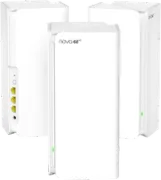
- MX15 (AX5400): Ideal as the main node (the one connected to the router). It provides more bandwidth to handle all the traffic in the house.
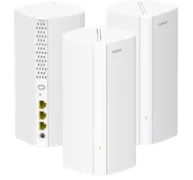
- MX12 (AX3000): Excellent as a secondary node to extend coverage in rooms or upper floors.
Step-by-Step Installation and Setup
1. Initial Connection
Connect the Ethernet cable from your ISP router to the WAN port on the Tenda Nova MX15. Download the Tenda app and follow the setup wizard to create your new WiFi network.
2. Add Secondary Nodes
Adding more coverage is as easy as plugging in the new node (MX12 or MX15) near one that’s already set up. The app will detect it automatically and add it to the Mesh network with no extra configuration.
3. Avoid Conflicts: DMZ Mode
To avoid "Double NAT" (which can cause issues with online gaming or remote access), the best approach is to go into your ISP router settings and place the Tenda Nova IP in DMZ. This "opens the door" for all traffic to your Mesh network, letting the Tenda handle security.
4. Turn Off the Old WiFi
Once your Mesh network is up and running, turn off the WiFi on your ISP router. This prevents interference and ensures that all your devices connect to the fastest, most stable network.
Smart Home and Home Assistant Optimization
If you use Home Assistant, a Mesh network is essential. With a single network, you won’t run into visibility issues between your Zigbee devices, WiFi devices, and your server. In addition, Tenda Nova lets you assign static IPs easily from the app, which is crucial so your integrations don’t break when the router reboots.
Where to buy
If you are interested in any of the options mentioned, here are the available links:
- Tenda Nova MX15 Pro AX5400 WiFi Mesh — Reviewed in the video: Amazon Pack de 1 · Amazon Pack de 3
- Tenda Nova MX12 AX3000 — Budget option (Más barato / Menos velocidad Wifi): AliExpress
Conclusion
Moving from a standard router to a Mesh system like the Tenda Nova MX15 is one of the biggest upgrades you can make to your smart home. Stability, speed, and coverage without the hassle.
Want to take your network to the next level? Don’t miss my Free Home Assistant Course to learn how to manage your smart home like a pro.